

Introduction
The Files app on iPad is an essential tool for managing documents with ease. It’s crucial to know how to find, set up, and utilize this application for maximum efficiency in daily tasks. This guide will walk you through the process of locating the Files app, configuring it to suit your needs, and resolving common issues to ensure smooth operation.

Understanding the Files App on iPad
As you delve into the Files app, treat it as a centralized hub for organizing your documents across various formats. The app connects seamlessly with cloud services such as iCloud, Dropbox, and Google Drive, providing a unified platform for all your files.
What is the Files App?
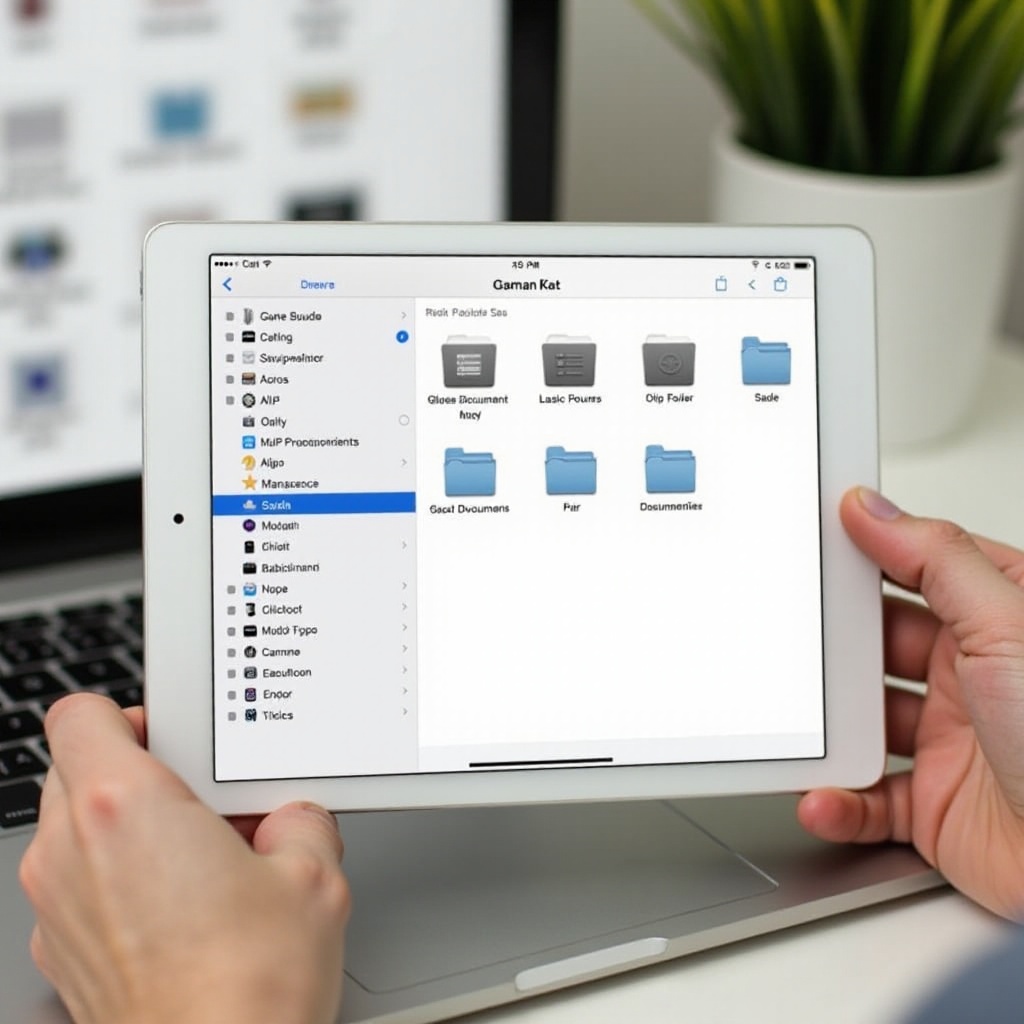
Apple’s Files app serves as a dynamic file management solution, facilitating the organization, sharing, and quick access of documents. Its intuitive design allows users to streamline their document management tasks efficiently.
Key Features and Benefits
The Files app boasts features like folders, tags, and collaborative tools, enabling flexible and streamlined file management. It integrates smoothly with other applications, supporting a well-structured workflow.
With these features at your disposal, transitioning to finding the app and customizing its functionality becomes straightforward.
Locating the Files App on Your iPad
Discovering the Files app on your iPad is a simple task that lays the foundation for efficient file management.
Using Spotlight Search
- Swipe down on the home screen to access Spotlight Search.
- Input ‘Files’ into the search bar.
- Select the Files app from the search results.
Default Position and Appearance
The Files app usually resides on your home screen alongside other Apple apps. If it’s not visible, you can find it in the App Library.
Once found, the next logical step is to set up the app, customizing it for your unique file management needs.
Setting Up the Files App for First-Time Users
After locating the app, personalization is crucial to optimize its functionality. Initial setup connects the app to your preferred services and customizes file access.
Initial Setup Steps
- Launch the Files app.
- Select your desired cloud services.
- Configure privacy settings and permissions.
Connecting Cloud Services
To connect cloud services:
– Head to the app settings.
– Hit ‘Edit’ to add or remove linked services.
– Activate iCloud or third-party providers for comprehensive document access.
With setup complete, you can focus on organizing your files efficiently, which leads to the next section on managing documents.

Tips for Organizing and Managing Files
Efficient file management within the Files app is essential for maintaining a tidy digital workspace. Utilize these tools to streamline your processes.
Utilizing Folders and Tags
Create distinct folders for various projects and employ tags for faster reference, ensuring quick access to necessary documents.
Sharing and Collaboration Features
The app facilitates:
– Direct document sharing.
– Real-time collaboration via shared folders.
As files are expertly organized, it’s vital to address any troubleshooting needs, which naturally progresses to discussing common app issues.
Troubleshooting Common Files App Issues
Despite its advanced capabilities, the Files app may present occasional challenges. Knowing how to troubleshoot ensures consistent performance.
Missing App Troubleshooting
If the app is absent:
1. Verify its installation via the App Store.
2. Reinstall if necessary.
Resolving Sync Problems
Ensure:
– Stable internet connection.
– Proper cloud service configuration.
Awareness of these solutions maintains operational efficiency, linking seamlessly to the overall wrap-up.
Conclusion
The Files app on iPad is invaluable for organizing and managing your documents. By locating, setting up, and efficiently utilizing its features, you can significantly boost productivity and streamline your workflow.
Frequently Asked Questions
How do I add external storage to the Files app on iPad?
Connect external drives using compatible adapters and access them directly within the Files app.
Can I use the Files app without an iCloud account?
Yes, you can integrate other cloud services and local storage options within the app.
How do I restore accidentally deleted files in the Files app?
Navigate to ‘Recently Deleted’ within the app and recover files within 30 days of deletion.