

Introduction
Experiencing lines on your iPhone screen can be frustrating, impacting your device’s appearance and functionality. These lines may appear as vertical, horizontal, or ghosting patterns, affecting your ability to view images, videos, and use apps effectively. Understanding the root causes and solutions can help restore your iPhone to its ideal condition. This guide covers the causes, troubleshooting methods, and preventive strategies to maintain a clear screen.
Understanding Screen Line Issues
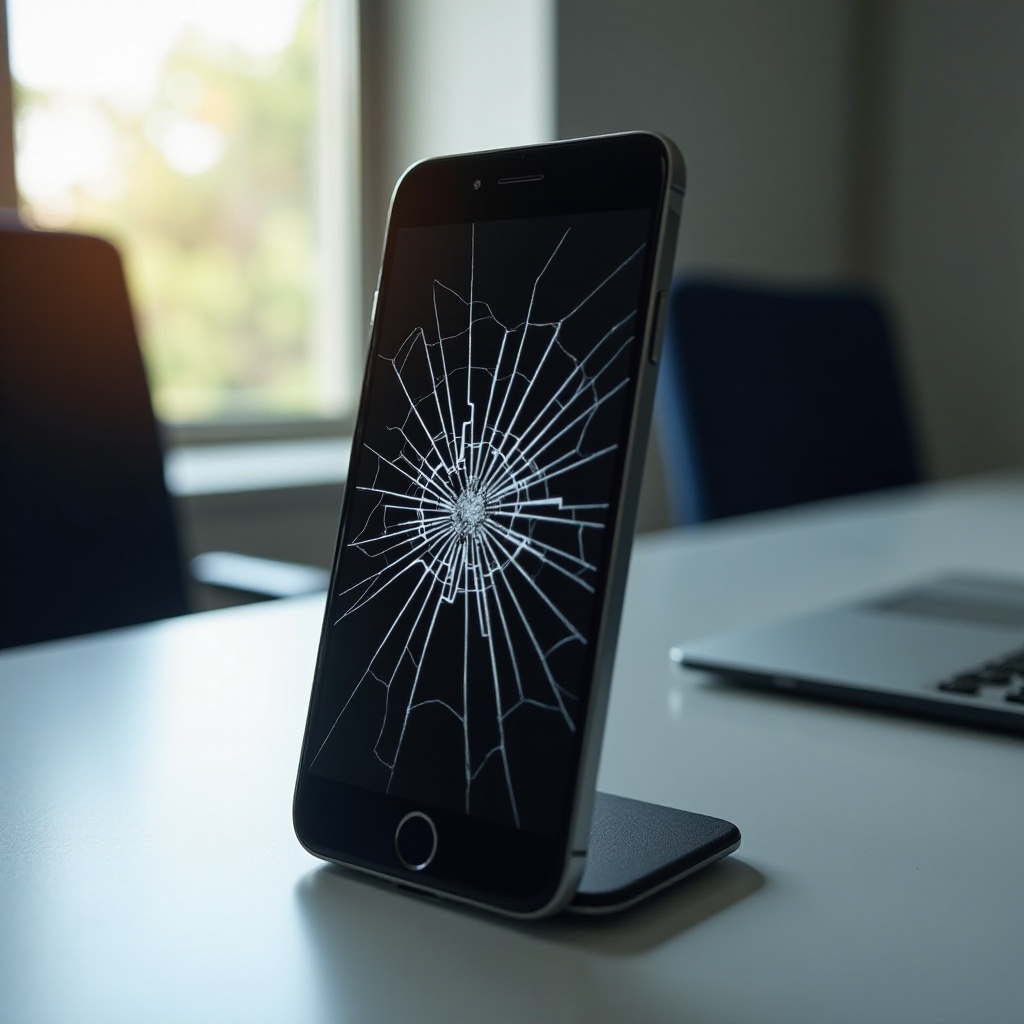
Screen lines on iPhones are a common occurrence, manifesting as thin, noticeable streaks across the display. These lines can diminish screen readability, posing challenges in interacting with features or viewing content. Identifying the type of screen lines is imperative; generally, they appear as vertical or horizontal lines, and in some cases, ghosting effects where faint images overlay screen content. These display distortions can originate from various sources, including software glitches and hardware malfunctions. Exploring these underlying causes helps you better understand how they impact your device.
Common Causes of Screen Lines on iPhones
Several factors contribute to the presence of screen lines, mainly categorized into software-related issues and hardware problems.
- Software glitches: These are often the result of bugs within the iPhone’s operating system. Regular updates aim to resolve these bugs, yet occasional incomplete installations or conflicts with apps can lead to screen anomalies.
- Hardware malfunctions: Physical defects in the phone’s components like the display panel, circuit board, or connectors can cause persistent lines across your screen. Phones that have suffered drops or exposure to moisture are particularly prone to damage, resulting in display issues.
Identifying whether your issue is software or hardware-related is essential for effective problem-solving. Now, we’ll discuss the initial troubleshooting steps you can try.
First Steps in Troubleshooting Screen Lines
Before considering repair, try these basic solutions which might resolve the issue:
- Restarting your iPhone: Sometimes, a simple restart can resolve software-induced screen glitches. Hold down the power button, then slide to power off. Restart it after a few moments.
- Checking for software updates: Open the Settings app, tap General, then Software Update. Installing the latest iOS updates can sometimes rectify screen issues.
- Performing a hard reset: For unresponsive screens, a hard reset can be performed by pressing and holding the Home button and the Sleep/Wake button simultaneously until the Apple logo appears.
These initial steps address possible software errors causing screen lines. If these measures prove ineffective, advanced solutions targeting hardware issues may be required.
Advanced Solutions for Persistent Issues
Hardware issues often necessitate more intensive approaches:
- Assessing hardware problems: Inspect the phone for physical damage such as cracks or evidence of water exposure. If your iPhone has experienced physical trauma, check for overt breaks in screen integrity.
- Cleaning the screen and connectors safely: Dust and debris can impair screen performance. Utilize a soft, lint-free cloth to gently clean the display and touch area. Ensure all ports and connectors remain clean.
These methods address persistent issues that aren’t resolved by simple resets and updates. Recognizing when hardware is the source of the problem leads naturally to the consideration of professional repair.
When to Seek Professional Repair Services
Some screen issues necessitate expertise beyond routine troubleshooting:
- Identifying irreversible damage: If screen lines persist despite attempts at initial and advanced fixes, the issue may be beyond simple home remedies. Inconsistent touch response or display functionality often signifies deeper hardware failures.
- Choosing between Apple and third-party repair options: For reliable solutions, consult authorized repair centers. Apple-certified technicians deliver dependable fixes, but third-party services can sometimes provide cost-efficient alternatives.
Opting for professional repair signifies a calculated step toward addressing severe damage, ensuring your device receives proper care.
Preventative Measures for Long-Term Screen Health
To prevent future screen issues, consider these maintenance tips:
- Tips for protecting your screen: Utilize screen protectors to shield against scratches and impacts. Invest in protective phone cases that reduce risks from falls and shocks.
- Recommended accessories and screen protectors: Quality screen protectors and durable phone cases help maintain display integrity, safeguarding against unforeseen damage.
Integrating these preventative measures helps secure your iPhone against daily threats. Let’s draw our discussion to a close with key insights.
Conclusion
Lines on an iPhone screen can disrupt functionality, but many issues can be managed with the right steps. From basic resets and cleaning to recognizing when professional repair is necessary, addressing this problem involves understanding both software and hardware influences. Embracing preventative measures aids in preventing future occurrences, ensuring your screen remains clear and functional.
Frequently Asked Questions
What causes lines to appear on my iPhone screen?
Screen lines can stem from software glitches or hardware defects.
Can software updates fix the lines on my screen?
Yes, updates can resolve software-induced errors causing screen lines.
How much does professional screen repair usually cost?
Repair costs vary; Apple services might be pricier than third-party options but often offer reliable fixes.